Automation Rules and Commands
Automation rules monitor predefined help desk events and, when a certain conditions are met, automatically perform one or more commands:
- Move tickets into a specific queue
- Assign ticket to the best representative
- Set Deadline for unsolved tickets based on issue severity
- Add Tags for additional classification and categorization
- Change Priority to higher or lower
- Send notifications to selected recipients.
The predefined events that are subject to automation are:
To manage automation rules, go to Settings > Automation rules.
Request submission

The request submission rules are divided by main two submission channels:
- Web Form, either by private or public form
- Email, when customer submits a request to inbound email address.
For each submission channel, you can edit two types of rules:
-
System rule ("Catch all")
- No conditions; always runs
- Cannot be deleted
- Runs last, after all custom rules
- Only one exists for each submission channel.
-
Custom rules
- Created for specific scenarios
- Evaluated in order of priority (lowest to highest)
- If a value is set in one step, it won't be overwritten in later steps
- Can exists many for each submission channel.
The Request submission table also displays the number of Settings and Conditions set, and an overview of the defined notifications.
To edit a rule, click the rule type (link), or click (+) Add Custom rule to create a custom rule.
Each rule contains four groups of information available in the corresponding sections:
Description

The Description region contains general information:
- Description: Enter a short explanation for your own reference
- Submission channel: Select the submission channel - Form or Email
- Rule priority: Determines the order of evaluation and execution when several Custom rules exist. They are evaluated from lowest to highest value.
Info
- To cancel the current rule edit and return to the list, click Cancel.
- To apply the changes, click Save.
- To delete a Custom customer rule, click Delete and confirm. The delete action is not reversible.
Conditions
In the conditions region, you define one or more criteria that must be true for the rule to run. Conditions are linked using the AND logic, meaning all conditions must be met in order to alter the ticket and send the corresponding email notifications.

Depending on the submission channel and the type of customer, the following conditions can be set:
- Inbound email: select inbound email address. The condition applies only for email submission channel
- Topic: select the ticket topic. The condition applies only for Web Form submission channel
- Subject contains: enter a string that the ticket subject must contain
- Message contains: enter a string that the ticket message must contain
- Customer: select a registered customer that submits the ticket from the list
- Customer group: select the group to which the customer who submitted the ticket belongs
- Customer name contains: enter a string that customer name contains
- Customer email contains: enter a string that customer email contains.
To add a condition:
- Click the + Add Condition button, and than select the condition from the drop-down menu
- Enter the condition string or value.
To add more conditions, repeat the steps above.
Commands

The the Set ticket data region, set the commands that alter the ticket, if the conditions above are met:
- Queue: select Queue from the list
- Assignee: select Agent from the list. Make sure the agent has permission to access the Queue where the ticket will be stored
- Deadline (hours): enter value in hours to add to the date/time of the submission
- Tags: select one or more from the list.
To alter the ticket data:
- Click the + Add Data button, and than select the data from the sub-menu.
- Enter the ticket value.
To add more ticket data, repeat the steps above.
Notifications

The notification messages are delivered via native email system. The content of email messages relies on predefined email templates.
For each recipient, click the toogle switch to set whether the recipient will get the email notification when a condition is met, and select an available email template from the list:
- Customer
- Assignee
- Queue manager.
Scheduled actions
With Scheduled actions, you define automated actions which should initiate when established support or service standards with time-based obligations are at risk, e.g.,:
- Re-assignment
- Subsequent categorization
- Escalation in priority
- Change in status.
For example, you can automate the following scenarios:
Example
If a request is submitted by a customer who belongs to Customer group "VIP", and if it is not solved/closed within 3 days
after deadline:
1. Set priority to "Urgent",
2. Assign to "David Garret"
3. Move the ticket to "Support" queue.
Example
If customer did not replied for two days:
1. Close the ticket
2. Send notification to customer.

The Scheduled actions list displays of all active scheduled actions. They can be added, edited and deleted to suit your needs.
The list also shows the number of Pending tickets for each action/rule that will be processed in a next job schedule.
To edit a rule:
- click the Edit icon in front of the action/rule name, or
- click the (+) Add rule to create a new Scheduled action rule.
Similarly to the Request submission, the Scheduled rule contains four groups of information available in the corresponding regions. The major difference to Request submission is that the Conditions region contains additional Time dependant condition values:

- Ticket is not - select one of values:
- Responded by Agent
- Responded by Customer
- Closed
- for - enter time window in hours
- Event type - select one of values:
- After being created
- Before deadline
- After deadline
- After responded by Agent.
You can combine a number of different time dependant conditions, e.g.:
| Ticket is not | for (hours) | Event |
|---|---|---|
| Responded by Customer | 24 | After responded by Agent |
| Responded by Customer | 12 | Before deadline |
| Responded by Agent | 12 | Before deadline |
| Closed | 48 | After responded by Agent |
An additional difference compared to the submission rule is that there are two additional data that can be altered:
- Priority: select the ticket Priority from the list
- Status: select the ticket Status from the list.
Test everything!
- Test new or updated rules on sample tickets before enabling in production.
Workflow notifications
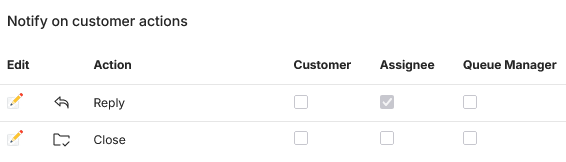
For the manual customer and agent actions, you can set workflow notifications and alerts when a ticket is replied, assigned, closed, or composed by agents or customers. These settings are applied to both email and desktop (popup alert) notifications.
For each action choose which user should be notified:
- Customer who submitted the ticket
- Assignee - assigned agent)
- Queue manager of ticket queue where the ticket is stored.
Agent actions
Agent actions table represents a set of notification rules based on predefined agent actions: Reply, Close, Assign, and Compose request.
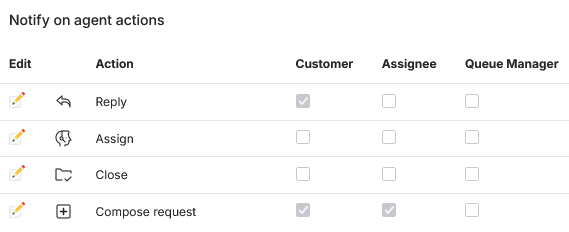
To edit an action, click the Edit icon, and then:
- Click the toogle switch to set whether the recipient will get the email notification
- Select available email template from the list.
Tip
- When agent performs Reply or Compose request action from their respective action forms, they can overwrite the default settings.
Customer actions
Customer actions table represents a set of notification rules based on predefined Customer actions: Reply and Close.
Note
- The reply action applies to both web form replies and email client responses.
To edit an action, click the Edit icon and perform the same steps as for the Agent actions.