Compose Request
The Compose request form lets support agents create tickets on behalf of customers to initiate the support process. It's most often used for requests that come in via phone calls, but it can also be used for:
- Submitting internal tickets or tasks (agents can be selected as "customers").
- Logging issues for unregistered customers.
You can open the "Compose request" form from:
- Dashboard - top-middle corner
- Ticket List - top-left corner
- Ticket Details – bottom-right corner
The form is similar to the customer-facing request form, but with extra fields visible only to agents.
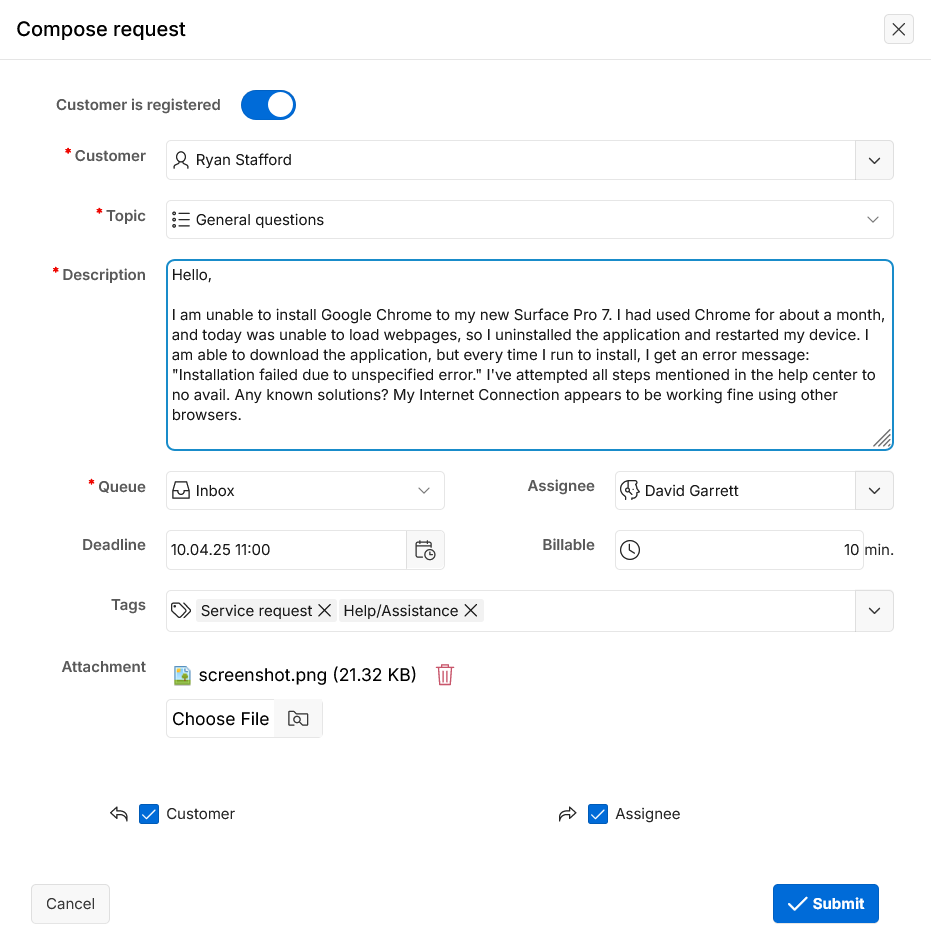
Step-by-Step Instructions
-
Identify the Customer
-
Customer is registered?: Toggle to set Yes or No.
- No → Enter the customer's Name and Email.
- Yes → Search and select the customer from the drop-down list.
Tip
You can set "Customer is registered" to No even if they are registered, then enter their name and email. The system will match their credentials and update the ticket.
-
-
Select the topic
- Choose the relevant Topic.
- The form will reload to show the correct system and custom fields for that topic:
- Subject
- Attachment
- Priority
- Submission fields
- Update fields
-
Fill in the request details
- Subject – Appears only if enabled for the topic in Settings → Forms.
- Description – Provide a clear explanation of the issue.
- Queue – Choose the queue for this request.
- Once selected, the Assignee list will reload with agents who have access to that queue. Click to set the named agent.
- Deadline – Enter date and time, or use the calendar control (pick date, hour, minute, then click Close).
- Billable – Enter billable time in minutes.
- Tags – Select one or more from the list.
- Attachment – Add files if enabled for the topic.
- Custom Fields – Fill in if enabled for the topic.
- Priority – Set if enabled for the topic.
- Email Notifications – Optionally disable for:
- Customer
- Agent
- Queue Manager
- (Default settings are in Processing, Default notifications - Agent actions)
-
Internal Task Management
In the Customer search list, all active agents appear alongside customers. This means you can assign requests to agents directly, using Sympoq as an internal task management tool.
Once all fields are complete, click Submit to create the ticket.